What is PageHive?
PageHive is a reading progress tracker for Duval County Public Schools. Students add books and log reading time. Teachers and parents/guardians can review those logs and mark them as verified. Principals and media specialists can explore school-wide reading activity.
Sign in
- Open PageHive and choose Sign in on the landing screen.
- Use your DCPS Microsoft account.
- If you do not have a DCPS account, use the enrollment link under the Sign in button to create one.
- When PageHive recognizes your role, choose Continue to open your dashboard.
After you are signed in, Sign out may appear in the top banner on the welcome or access-denied screens. While a dashboard is open, use Out / Sign out in the header toolbar to end your session.
If you sign in but remain on the login screen, your account may not have PageHive data yet (for example, a teacher who is not listed on any classes, or a parent with no linked students).

Header controls
- Theme — change PageHive logo and colors.
- School year — switch the active school year (shown after sign-in when years are available).
- Dashboard view — if your account has more than one role (for example teacher and parent), switch dashboards here.
- ? — opens this help page for your current role.
- Out / Sign out — ends your Microsoft session and returns to the landing screen.
- Your name — shows the active identity. Imperator accounts can click the name to impersonate another user.
Your dashboard

Header stats
The strip under the title summarizes your student-added books and teacher-assigned reading logs (counts, minutes, and verified minutes). Opening Metrics hides this strip along with the main panels.
Add books
- In Add Books, search by title, author, or ISBN.
- Click a search result to open book details, or choose Add on the result row.
- Added books appear under Reading History → My Books.
Log reading time
- Open a book from Reading History (click the book card).
- Enter how many minutes you spent reading.
- Choose Log Reading to save that session.
- Optional: check I've finished this book when logging your last session. You can add an optional star rating (1–5 stars) before saving.
Log each reading session after you finish. You can add multiple logs for the same book.
Reading history
Use the My Books and Assigned tabs to switch between books you added and books a teacher assigned.
Each book card shows:
- Total reading time — hover for verified vs. not verified breakdown.
- Log count — click to open the reading logs list (read-only for students).
- Due date — shown on teacher-assigned books.
Metrics
Choose Metrics to see your reading totals, verified vs. not verified time, self-added vs. assigned split, and recent trends. Choose Back to return to Add Books and Reading History.

Your dashboard

Header stats
The strip under the title shows student and assignment counts, plus student-book and teacher-assigned reading totals. On the Students view, choose Metrics to open analytics for the selected student (use Back to return).
Students / Assignments / Assign Book
Use the dropdown next to Teacher Dashboard to switch between Students (roster + reading entries), Assignments (assignment list + details), or Assign Book (search and assign a book). Students is the default. Assign Book appears only when the current school year is selected.
My Students
- Class dropdown — filter the roster to one class/period, or keep All classes.
- Filter students — enter a name or ID and choose Apply.
- Student List — select a student to load their reading entries. Rows show a photo and book count when available.
Reading Entries
Use the Student Books and Assigned tabs for the selected student. Each book card shows total reading time and log count.
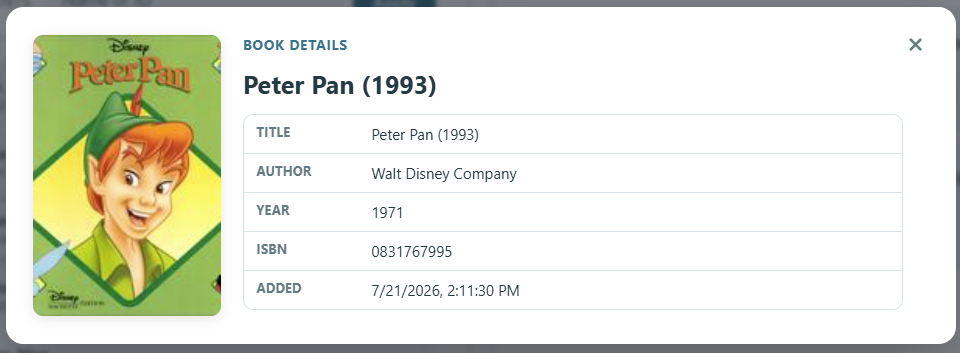
- Student Books — click a book to open Book Details.
- Assigned — click a teacher-assigned book to open Assignment Details directly.

Verify reading logs
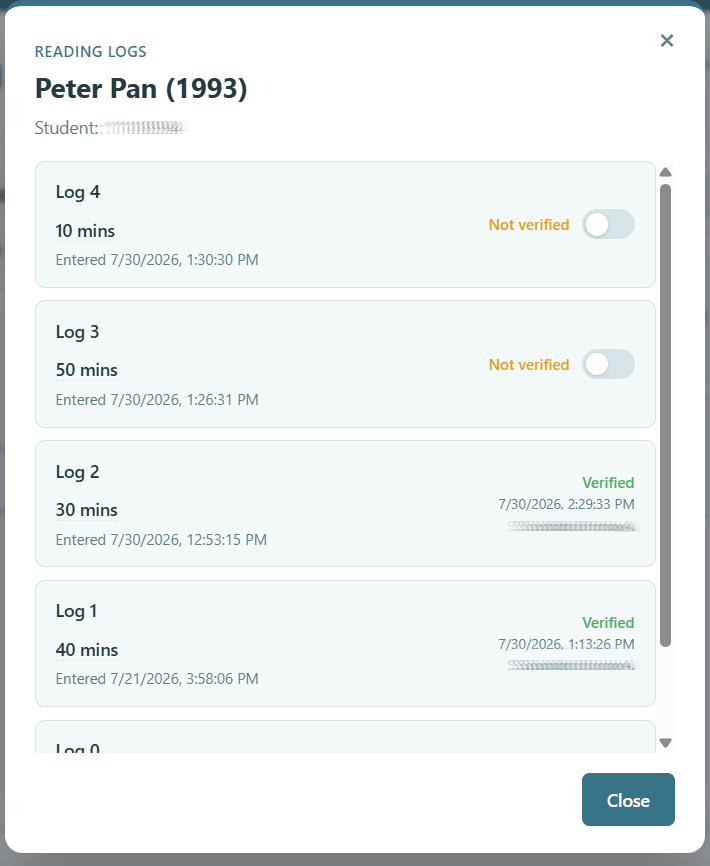
- Click the log count on a book card (do not click the book row itself on the Assigned tab).
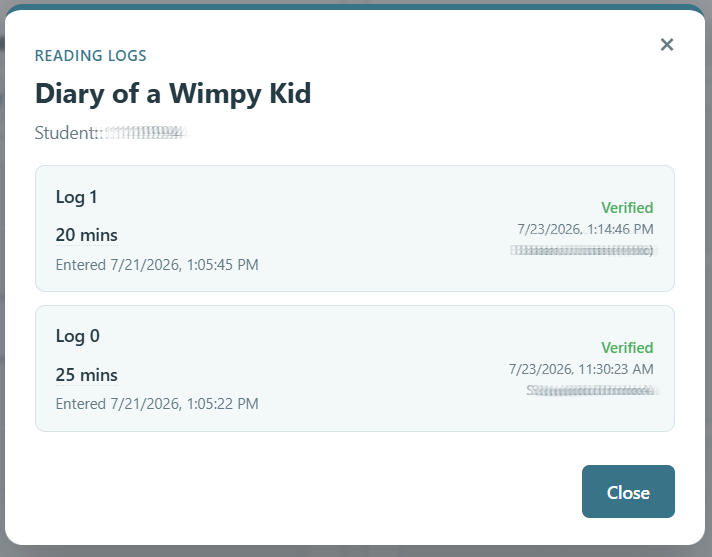
- In the reading logs modal, logs that are not yet verified show a toggle.
- Turn toggles on for logs you want to verify, then click Update.
Verification works for both self-added and teacher-assigned books. Verified logs show who verified them and when.
Assignments view
Choose Assignments from the dashboard dropdown to browse your assignments in a list on the left and details on the right. Use Sort by to reorder the list.
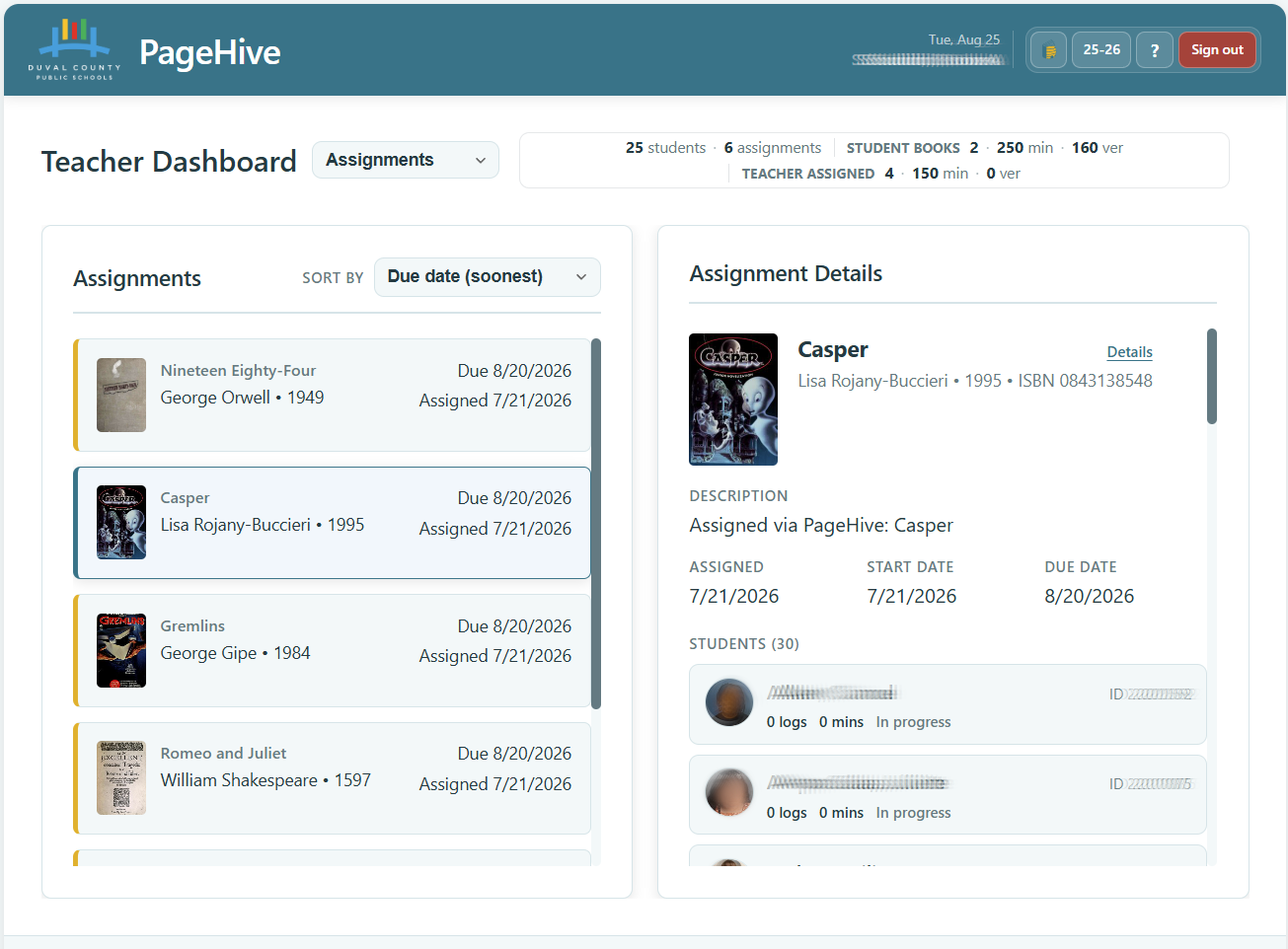
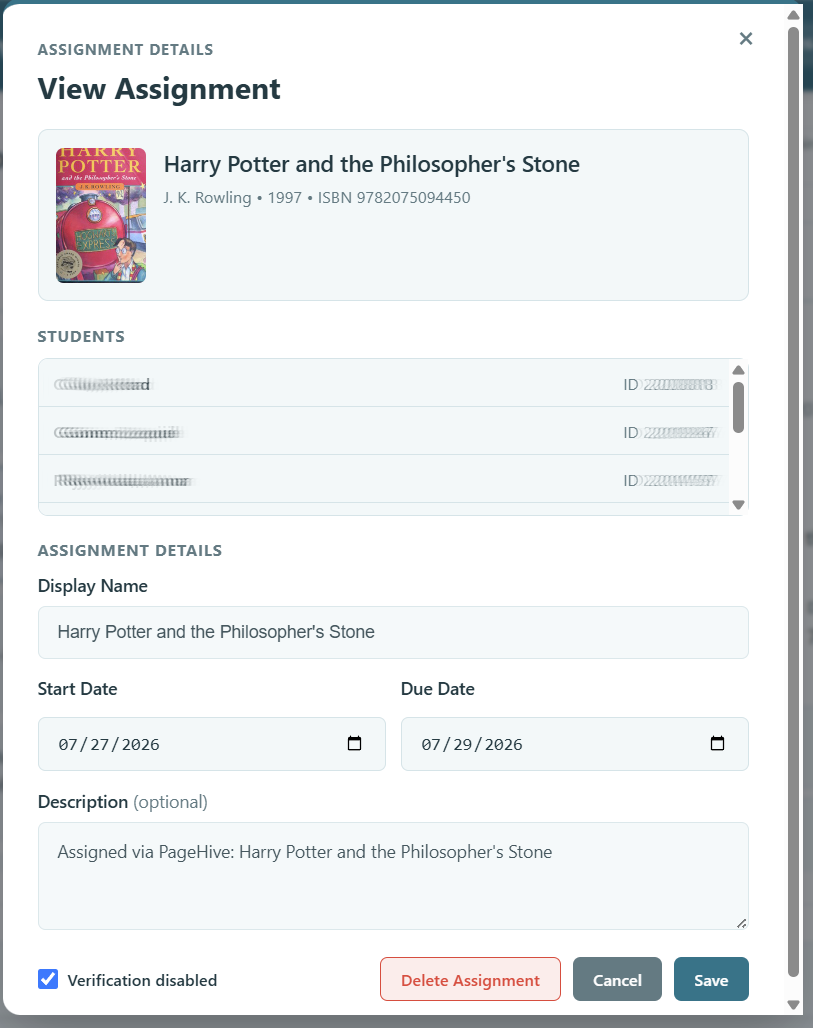
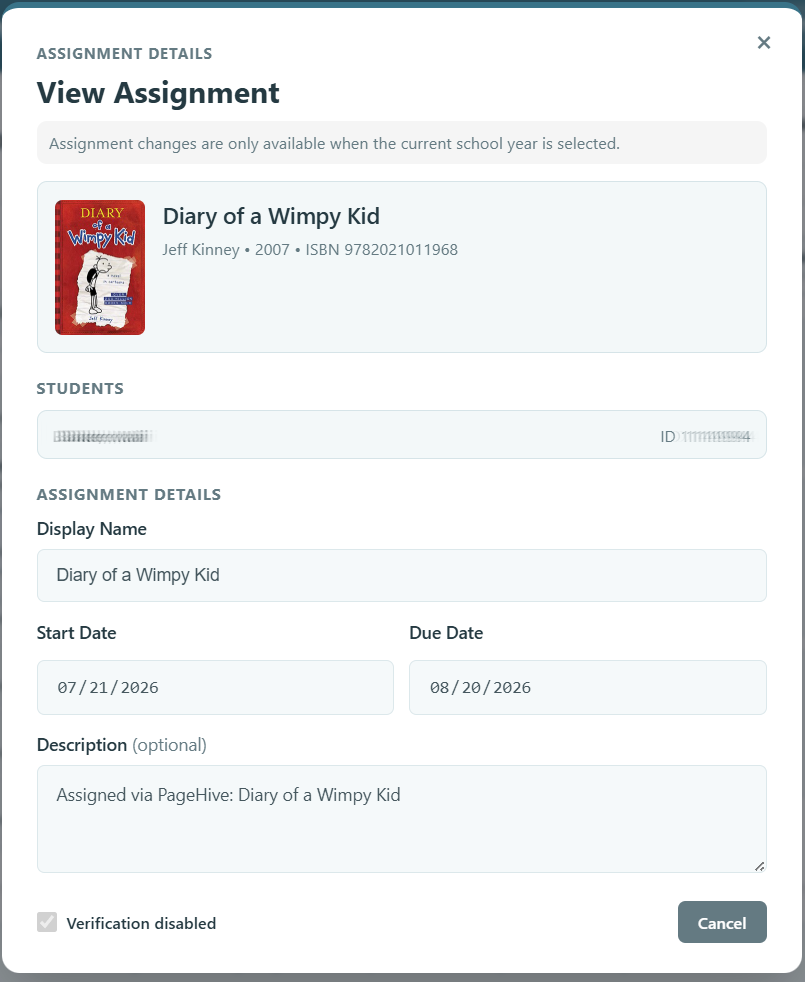
Assignment Details
From the Assignments details panel, choose Details to open the full assignment dialog. When the current school year is selected, you can update start/due dates and verification settings. Past or future school years open the same dialog in read-only mode.
Assign Book
Choose Assign Book from the dashboard dropdown to open the assignment workflow. This option is available only when the current school year is selected. Use the dropdown to return to Students or Assignments anytime.
- Search for a book by title, author, or ISBN, then select it from the results.
- Under Assign To, optionally filter by class, use Select all or check individual students, then choose Assign Book.
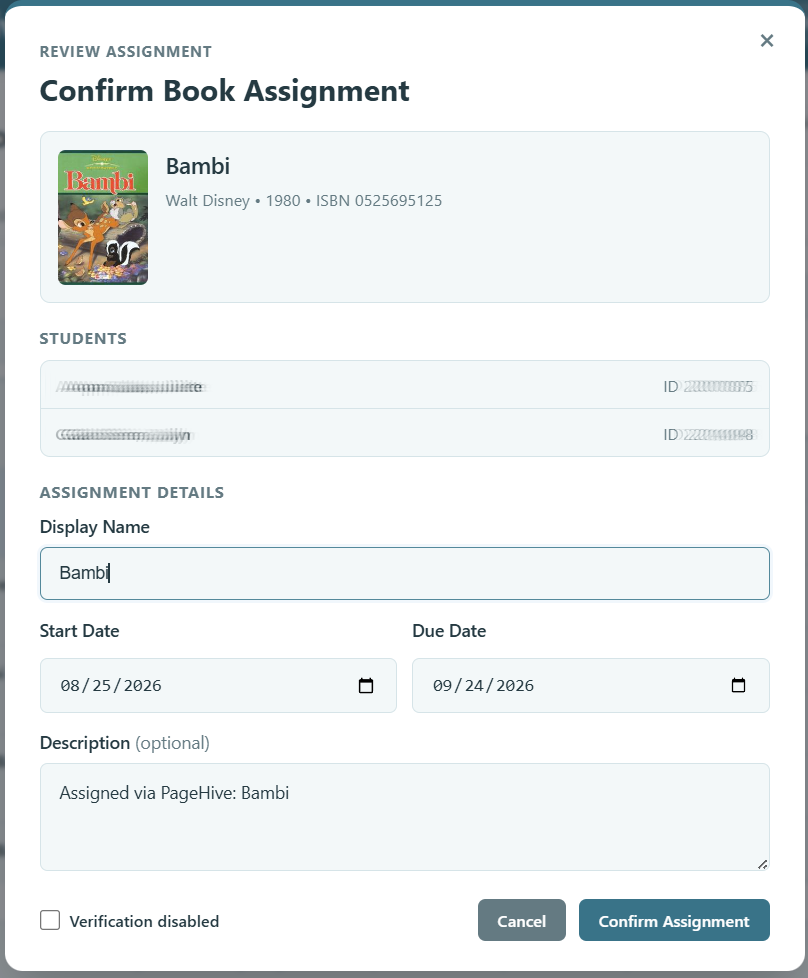
- Review the Confirm Book Assignment dialog, adjust details if needed, then choose Confirm Assignment.

Confirm Book Assignment
The Review Assignment dialog summarizes the book and selected students before anything is saved. You can still change assignment details here:
- Display Name — label students see for the assignment (defaults to the book title).
- Start Date / Due Date — when the assignment begins and when it is due.
- Description (optional) — note shown with the assignment.
- Verification disabled — when checked, reading logs on this assignment do not require teacher verification.
Choose Confirm Assignment to create the assignment, or Cancel to return without saving.
Metrics
On the Students view, choose Metrics to see reading analytics for the selected student. Use Back to return to the dashboard.
Your dashboard

Header stats
When available, the stats strip summarizes reading activity for your linked students. Opening Metrics hides the strip and the main panels.
My Students
Linked students appear in the left panel. Click a student to load their reading entries.
Reading entries
Use the Student Books and Assigned tabs for the selected child. Each book card shows total reading time and log count.
Verify reading logs
- Click the log count on a book card.
- In the reading logs modal, logs that are not yet verified show a toggle.
- Turn toggles on for logs you want to verify, then click Update.
Parents and guardians can verify reading logs the same way teachers do, for both self-added and teacher-assigned books.

Metrics
Choose Metrics to see reading analytics for the selected child. Use Back to return to the dashboard.
Your dashboard
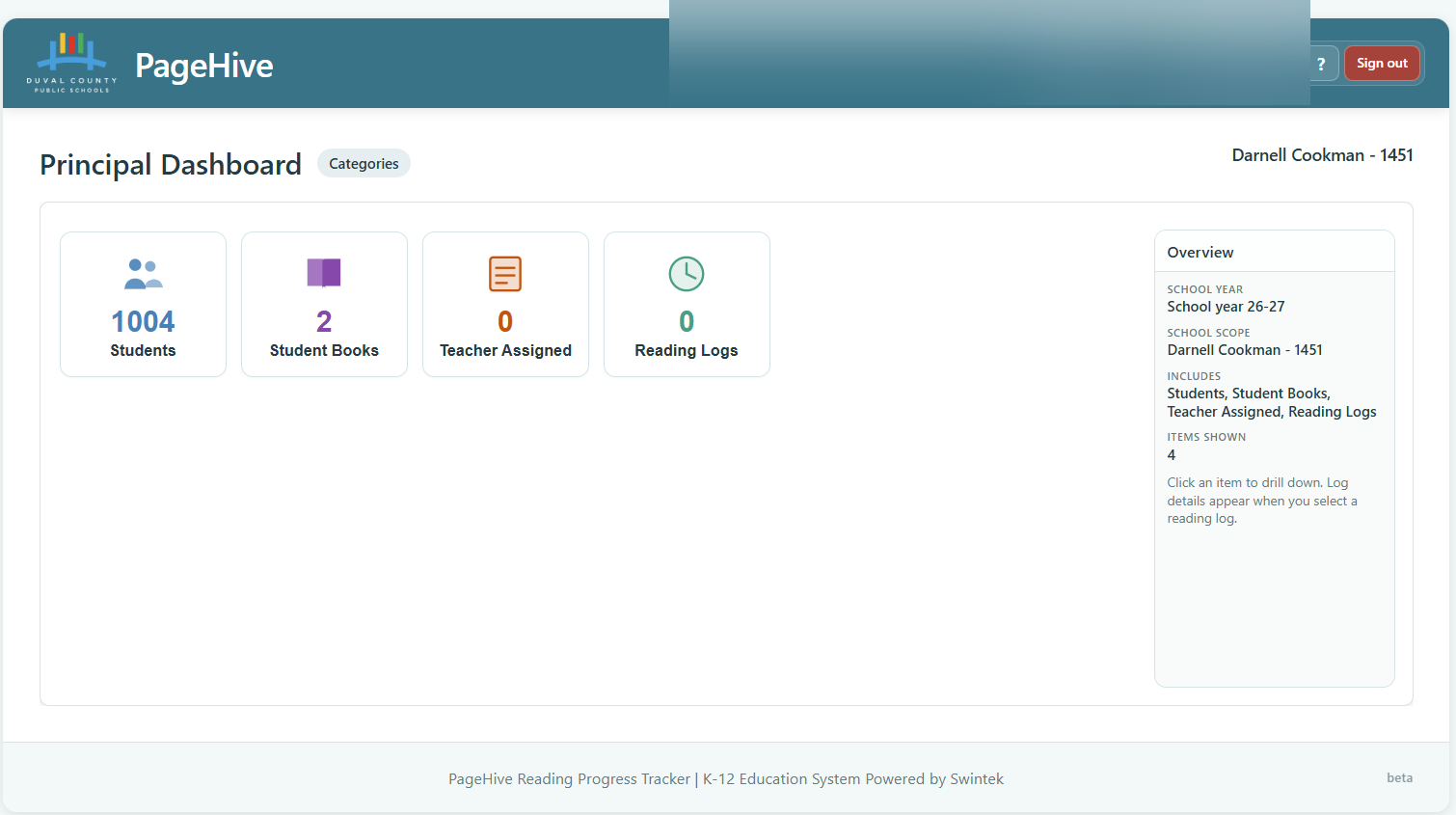
Principals and media specialists use a school data explorer rather than a per-student roster panel. Counts come from PageHive stats for your school scope.
School filter and path
- School dropdown — limit the explorer to one school, or keep All schools when available.
- Breadcrumb — shows where you are in the drill-down path. Use it (or Home) to move back up.
Explore categories
From the overview tiles you can drill into:
- Students — school enrollment; open a student for details.
- Student Books — books students added themselves.
- Teacher Assigned — assignments created by teachers.
- Reading Logs — teacher-assigned reading logs and minutes.
Search and pagination appear when a list is large. The sidebar shows details for the selected item.
When something goes wrong
If an action fails (for example saving a book or verifying a log), PageHive shows an error dialog with a short summary. When more detail is available, choose More details... to expand technical information for troubleshooting. Click Close to dismiss the dialog.
Understanding reading logs
- Reading log
- A single reading session on one book, recorded as a number of minutes.
- Verified log
- A teacher or parent confirmed the reading log. Verified time counts toward the verified total on the book card.
- Student books
- Books a student added to their own reading history.
- Teacher assigned
- Books a teacher assigned to one or more students, often with a due date.
Tips
- Log minutes after you finish reading so your time is recorded correctly.
- Hover totals and log durations for additional details.
- Reading logs on your dashboard are read-only; teachers and parents verify them.
- Use Out in the header when you are done on a shared device.
Tips
- Select a student under My Students first if you manage more than one reader.
- Hover totals and log durations for verified vs. not verified breakdowns.
- Only unverified logs show a verify toggle; already verified logs display confirmation details.
- Use Out in the header when you are done on a shared device.
Tips
- Start from the overview tiles, then drill down with the breadcrumb to stay oriented.
- Use the school dropdown before searching if you oversee more than one school.
- Reading Logs in the explorer are teacher-assigned logs, not every student self-log.
- Use Out in the header when you are done on a shared device.
Need more help?
Contact your school or classroom teacher if you cannot sign in, do not see expected students or books, or believe reading time was recorded incorrectly.
Sign in to PageHive to see instructions for your role (student, parent/guardian, teacher, or principal / media specialist).